
Searching for the right build a saas dashboard with nextjs course can be overwhelming. Most tutorials show you how to make a pretty UI, but they skip the hard parts: state management, authentication, and performance optimization. In my experience building several B2B tools, the difference between a ‘tutorial project’ and a production-ready SaaS is in the architecture.
In this guide, I’m treating this as a self-paced course. We aren’t just building a page; we’re building a system. We will use the Next.js App Router, Tailwind CSS, and shadcn/ui to create a professional-grade dashboard that feels snappy and scales effectively.
Prerequisites
Before we dive into the code, make sure you have the following installed and configured:
- Node.js 18+: The runtime for our environment.
- TypeScript: Essential for SaaS apps to avoid runtime errors in complex data structures.
- Basic Knowledge of React: You should be comfortable with hooks like
useStateanduseEffect. - A Vercel Account: For seamless deployment and analytics.
Step 1: Initializing the Next.js Project
First, let’s spin up the project using the latest stable version of Next.js. I always recommend the App Router for SaaS builds because of its built-in support for Server Components, which drastically reduces the JavaScript sent to the client.
npx create-next-app@latest my-saas-dashboard --typescript --tailwind --eslintDuring the setup, select ‘Yes’ for the App Router and ‘Yes’ for the src/ directory. Once installed, navigate into your project and initialize shadcn/ui. I’ve written a detailed shadcn ui review for production where I explain why this is the gold standard for SaaS components today.
npx shadcn-ui@latest initStep 2: Designing the Layout Shell
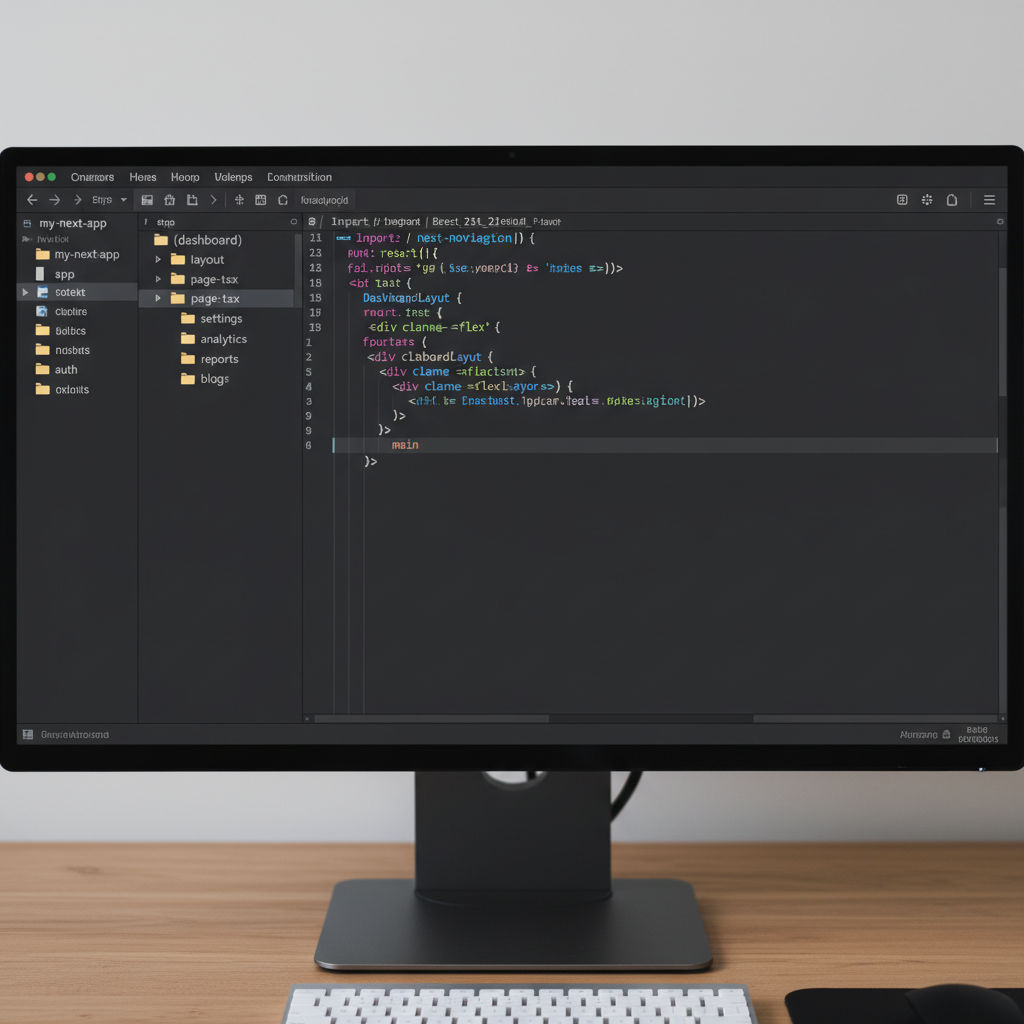
A SaaS dashboard usually consists of a persistent sidebar, a top navigation bar, and a dynamic content area. In Next.js, we handle this in the layout.tsx file. This ensures the sidebar doesn’t re-render when the user navigates between different dashboard views.
// src/app/(dashboard)/layout.tsx
import Sidebar from '@/components/sidebar';
import TopNav from '@/components/top-nav';

export default function DashboardLayout({ children }: { children: React.ReactNode }) {
  return (


          {children}


  );
}
As shown in the image below, the layout shell creates a clear separation between navigation and content, which is critical for user experience in complex applications.
Step 3: Building the Analytics Overview
The heart of any SaaS dashboard is the data visualization. I recommend using Recharts or Tremor for these components. For this course, we’ll focus on a ‘KPI Grid’ followed by a ‘Revenue Chart’.
// src/components/dashboard/stats-grid.tsx
import { Card, CardContent, CardHeader, CardTitle } from "@/components/ui/card";
import { DollarSign, Users, Activity } from "lucide-react";

export function StatsGrid() {
  return (


          Total Revenue


          $45,231.89
          +20.1% from last month


      {/* Repeat for Users and Activity */}

  );
}
Step 4: Implementing Server Actions for Data Fetching
In a real SaaS, you aren’t using mock data. You’re fetching from a database like PostgreSQL or MongoDB. Next.js Server Actions allow us to mutate and fetch data without creating separate API routes for everything.
// src/app/actions/get-analytics.ts
'use server'

import { db } from '@/lib/db';

export async function getAnalyticsData() {
  const data = await db.revenue.findMany({
    orderBy: { date: 'desc' },
    take: 30
  });
  return data;
}
When implementing this, you’ll notice that server-side fetching improves the initial load time significantly. If you find your dashboard is lagging, I highly recommend optimizing your lighthouse score in Next.js to ensure your LCP (Largest Contentful Paint) remains low.
Pro Tips for SaaS Dashboards
- Skeleton Screens: Never show a blank page while loading. Use shadcn’s Skeleton component to create a perceived performance boost.
- Zustand for Client State: Use Zustand for simple global states (like whether the sidebar is collapsed) instead of heavy Redux setups.
- Optimistic UI: When a user updates a setting, update the UI immediately before the server responds to make the app feel “instant”.
Troubleshooting Common Issues
Problem: Hydration Mismatch
This often happens when using localStorage or Date() inside a component.
Solution: Wrap the logic in a useEffect or use a suppressHydrationWarning attribute if the difference is negligible.
Problem: Layout Shifting
Images or charts loading late can push content down.
Solution: Define fixed heights for your chart containers so the layout remains stable during data fetch.
Build a SaaS Dashboard with Next.js: What's Next?
Now that you’ve completed this build a saas dashboard with nextjs course, you have a functional foundation. The next steps are adding Stripe for subscriptions, Clerk or NextAuth for authentication, and implementing role-based access control (RBAC) to restrict certain pages to ‘Admin’ users only.
If you want to scale this further, consider exploring serverless databases like Neon or PlanetScale to keep your latency low globally.
Official resources for SaaS Dashboard
Documentation and references for SaaS Dashboard:
